NavvTrack Fleet Management User Guide - Web & Mobile App
Secure Messaging
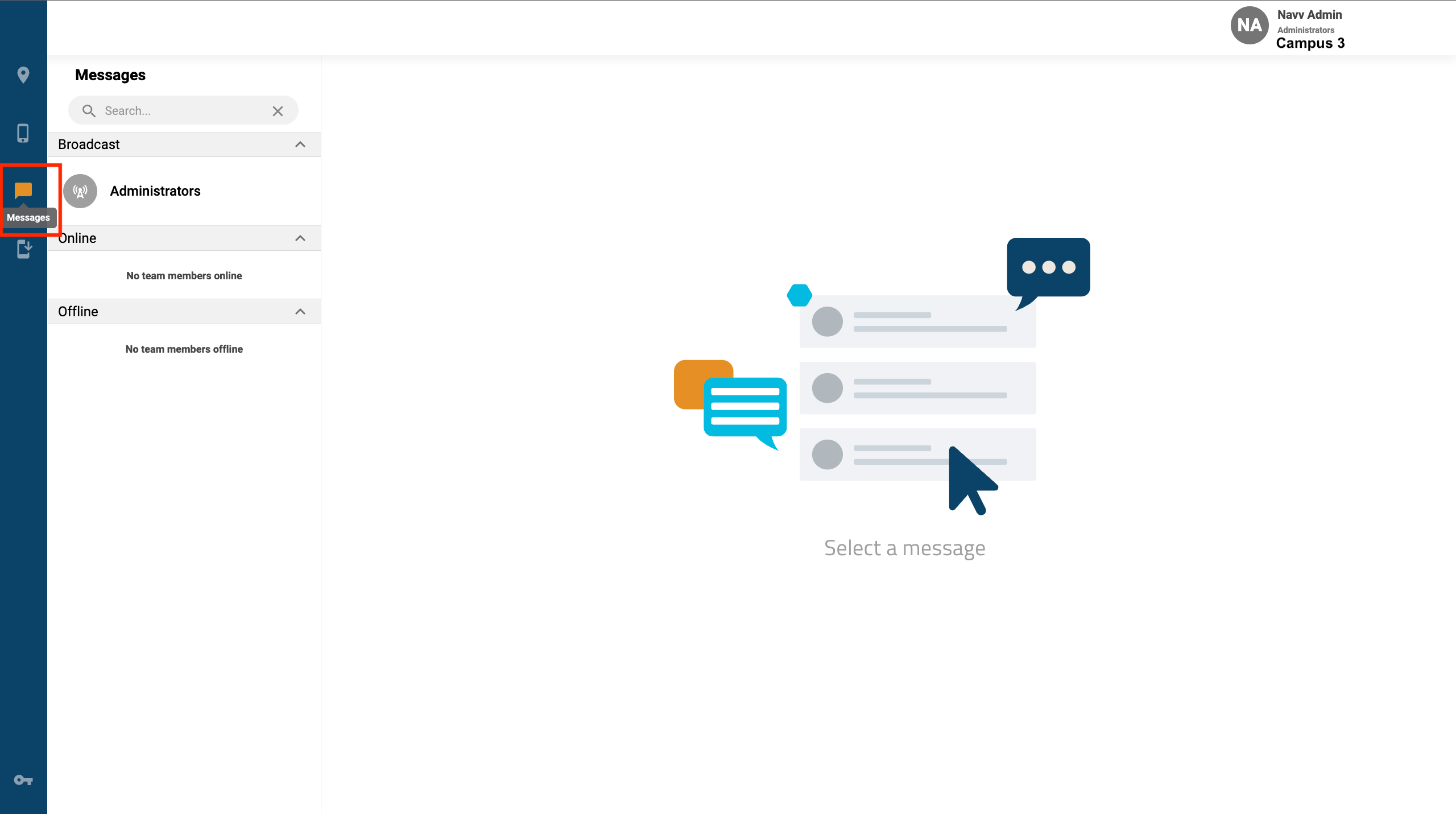
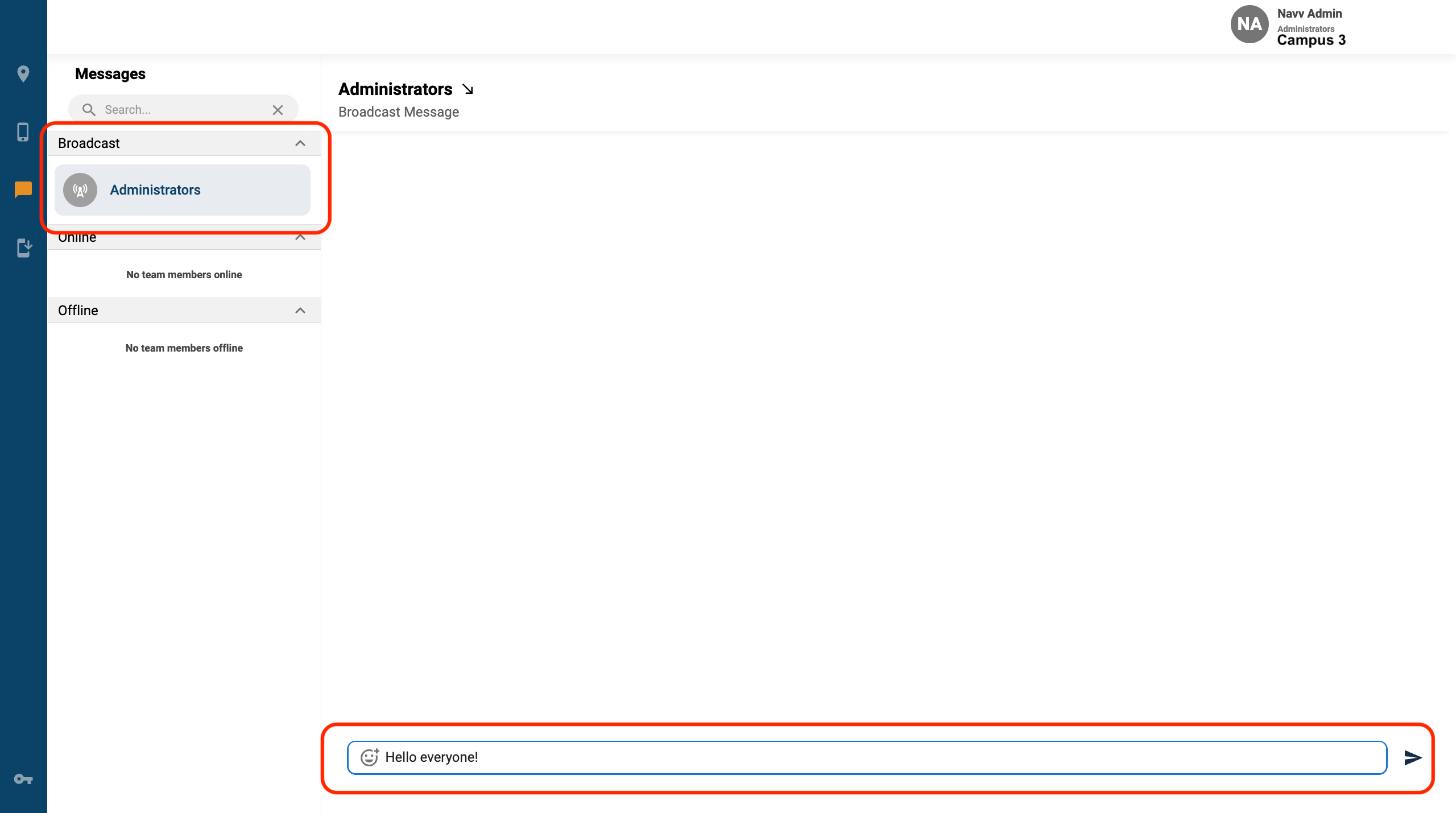
Team members are able to communicate via secure messaging on the NavvTrack Web Console. To use secure messaging:
1. Click on the Messages icon in the left navigation.
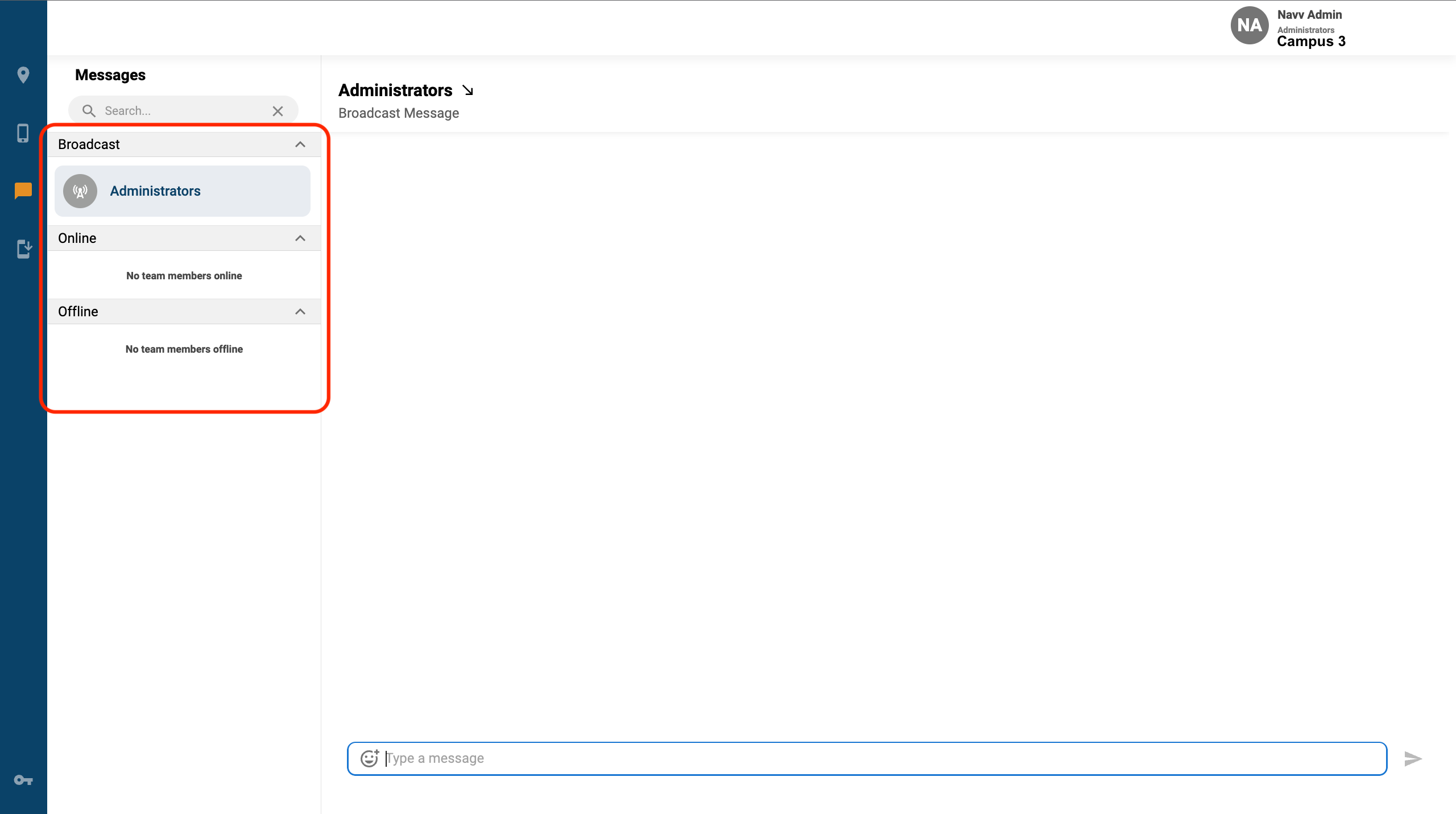
2. You should see a column with Broadcast, Online, and Offline listed to the left.
Direct Messages
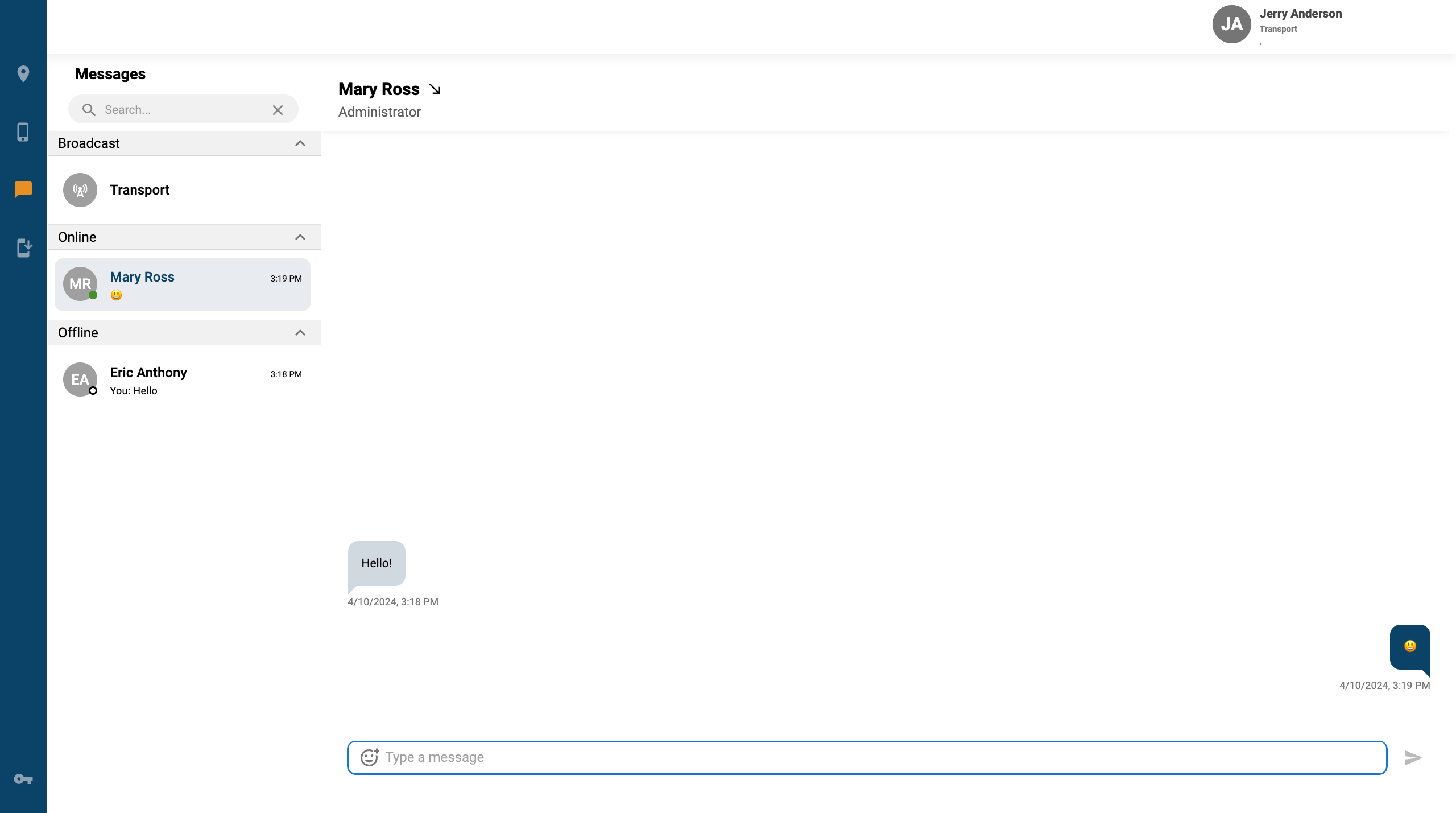
Direct messages allow team members to communicate privately with each other. Other team members will appear as online if they are logged into the web console.
1. Click on Team Member’s name that is Online or Offline. 2. You can also also search a Team Member by typing their name in the search bar. 3. Type your message in the message box and click the arrow to send directly to that Team Member.
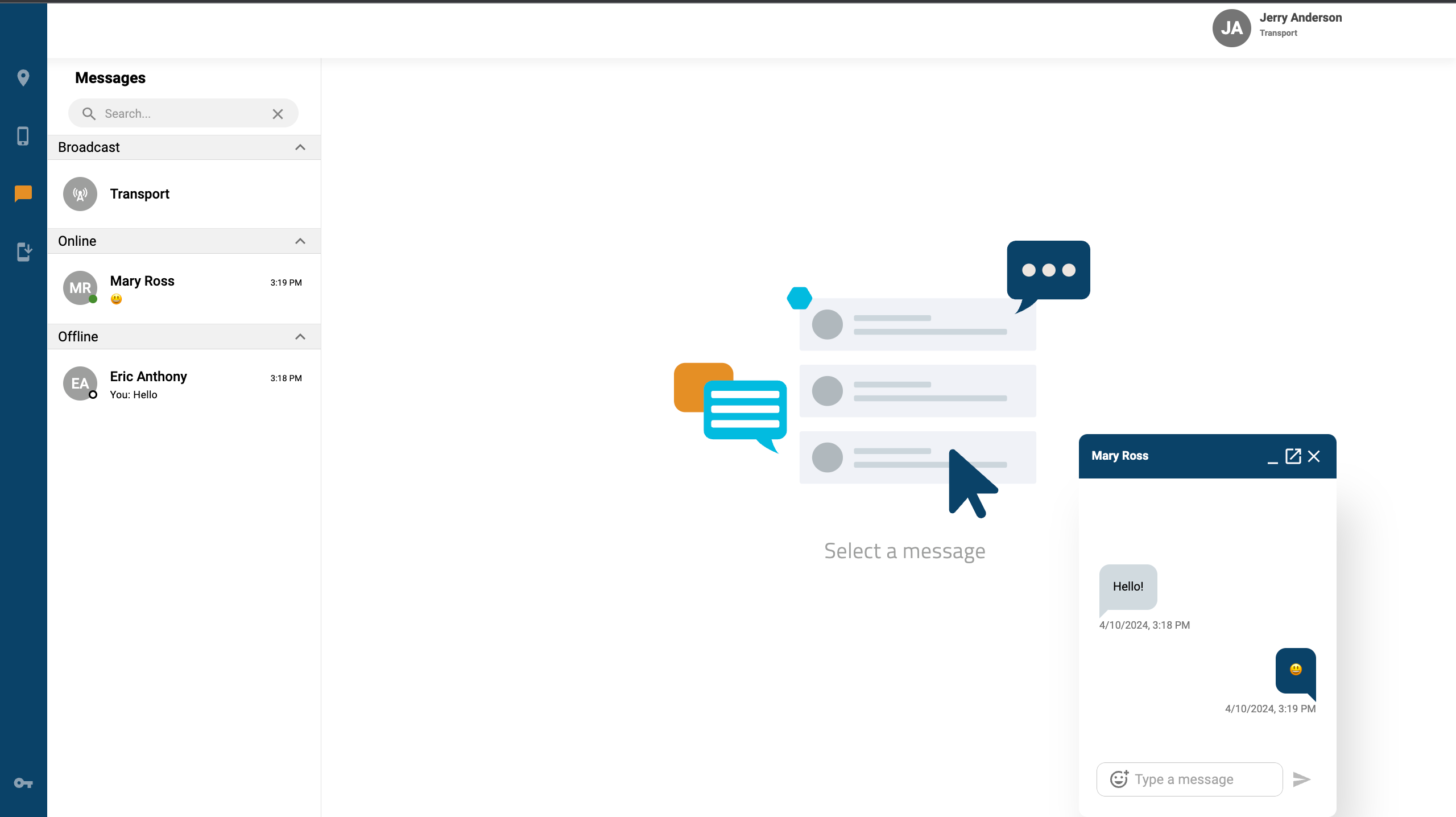
Message windows can also be changed to a popup view and used on other pages within NavvTrack. Click the arrow next to a team member's name in order to start a popup message window.
Broadcast
Broadcast allows members of a Team to communicate all together. Messages sent here are seen by all members in a Team like a group chat.
1. Click on the Team Name under Broadcast.
2. On the bottom of the screen to the right of the column will be a message box. 3. Type your message in the Type Message box and click the arrow to send.
Messaging works the same for Administrators as it does for Managers and Staff. Administrators can only chat with people on their team.