NavvTrack Fleet Management User Guide - Web & Mobile App
Device Checkout
Check Out (Without Logins for Mobile App Enabled)
The Check Out feature allows team managers and administrators to keep track of devices that are currently in use by specific team members.
Web Console
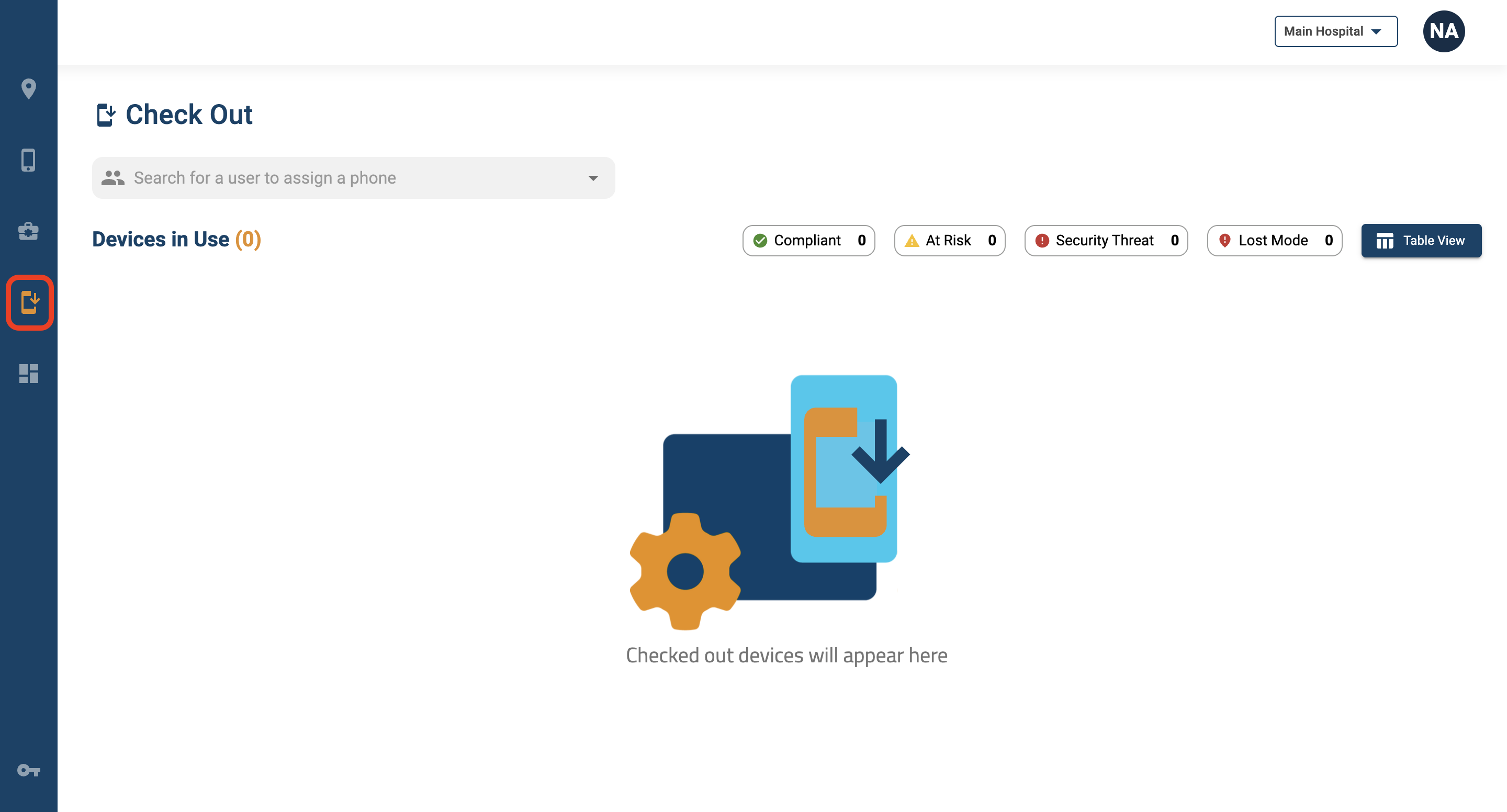
1. Click on the Check Out icon in the left navigation.
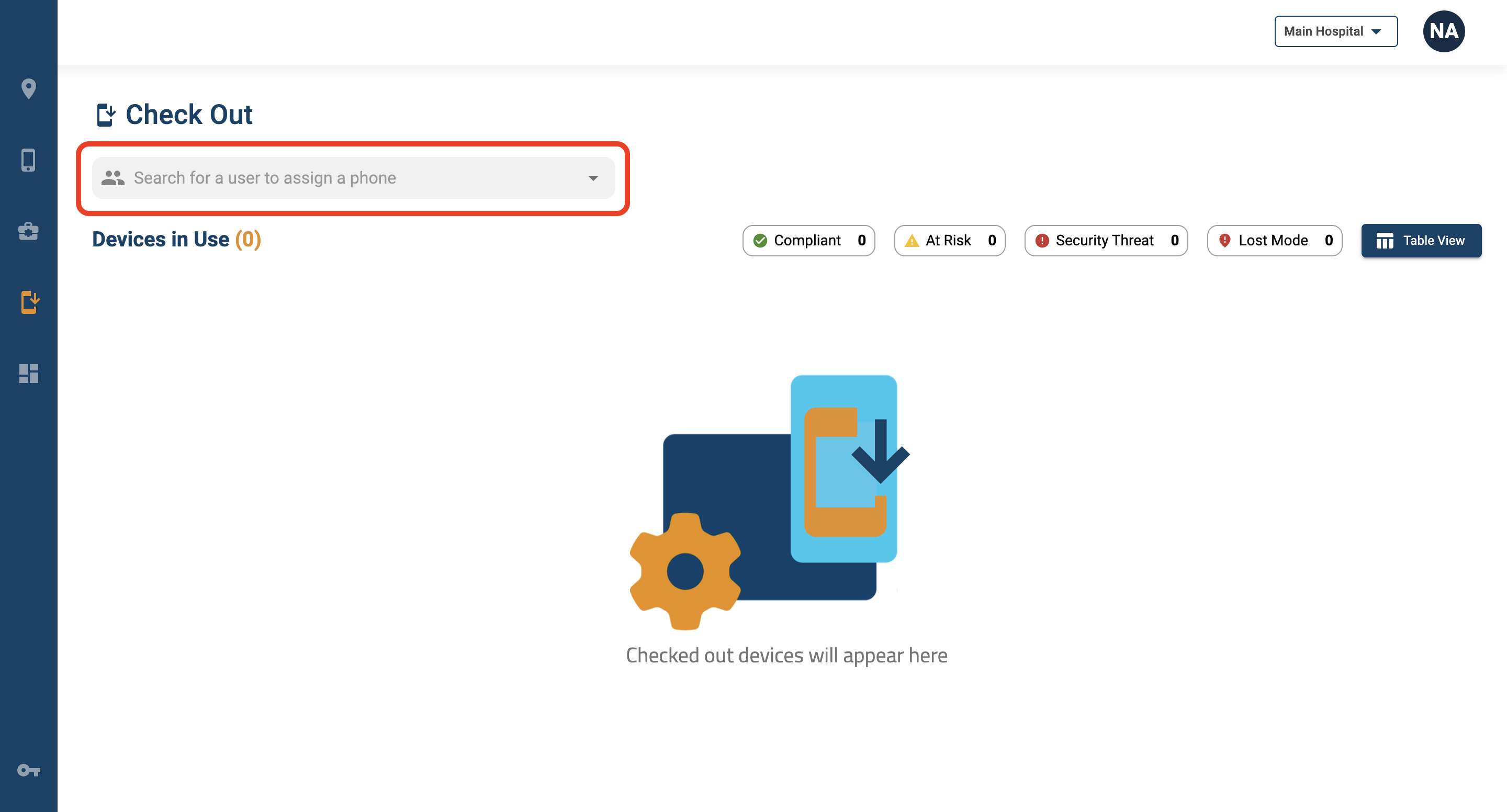
2. Click on the search bar and search for a team member to assign a device.
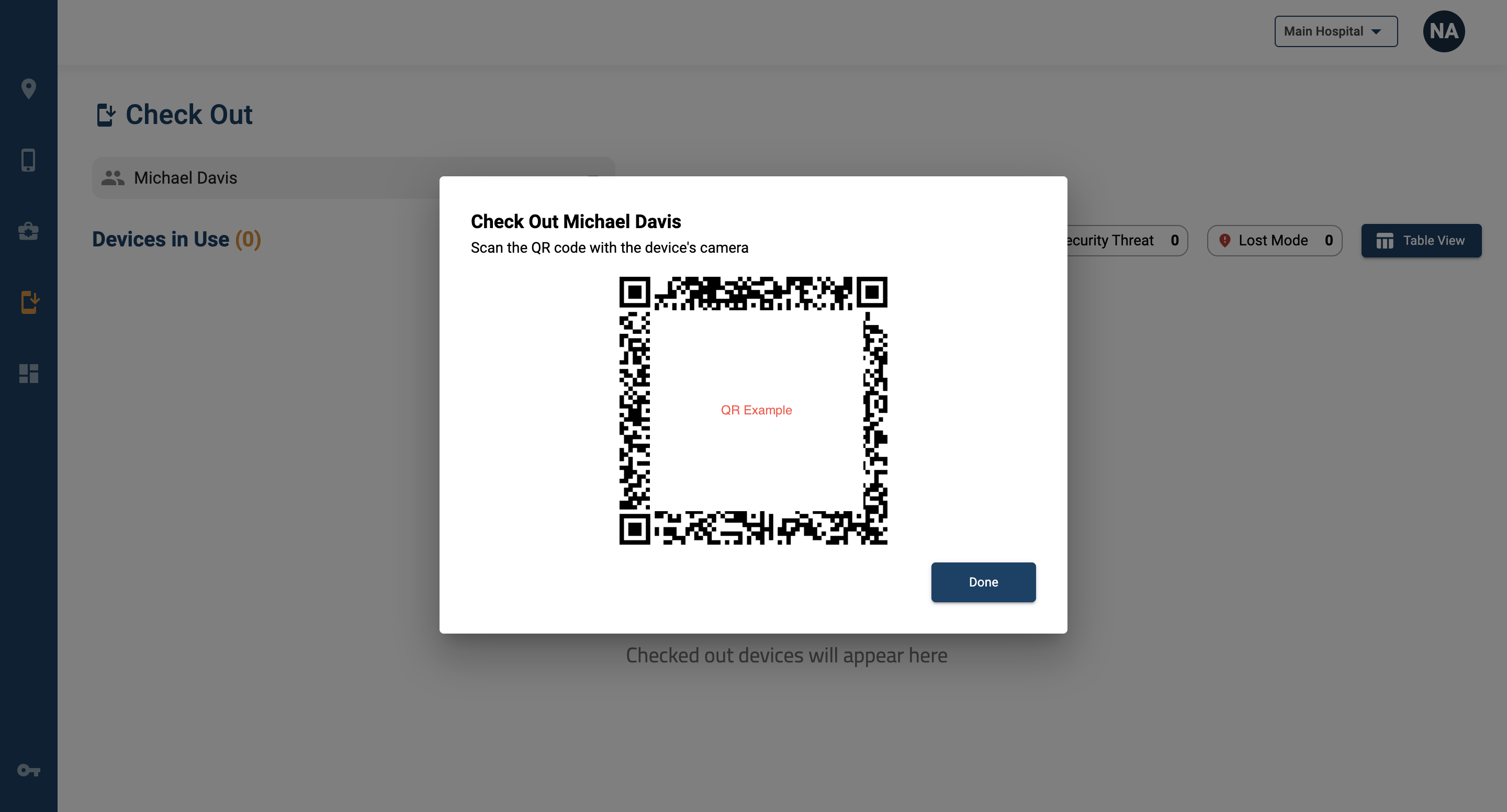
3. Scan the QR code that appears using the camera on the Check Out tab of the mobile device.
4. The device will appear on the Check Out dashboard with its assigned team member. Upon return of the device, click "Check In" to remove the card from the dashboard.
Check Out (With Logins for Mobile App Enabled)
For teams with mobile logins enabled, team managers do not need to scan a QR code. When a team member logs into a device, that device will appear on the Check Out dashboard of the web console automatically and disappear when they log out.
In the case that a team member forgets to log out of the mobile application upon returning a device, click the "Check In" button on their card in order to log them out of the Navv mobile app.