User Guide
NavvTrack Fleet Management User Guide - Web & Mobile App
NavvTrack Mobile App
Map View
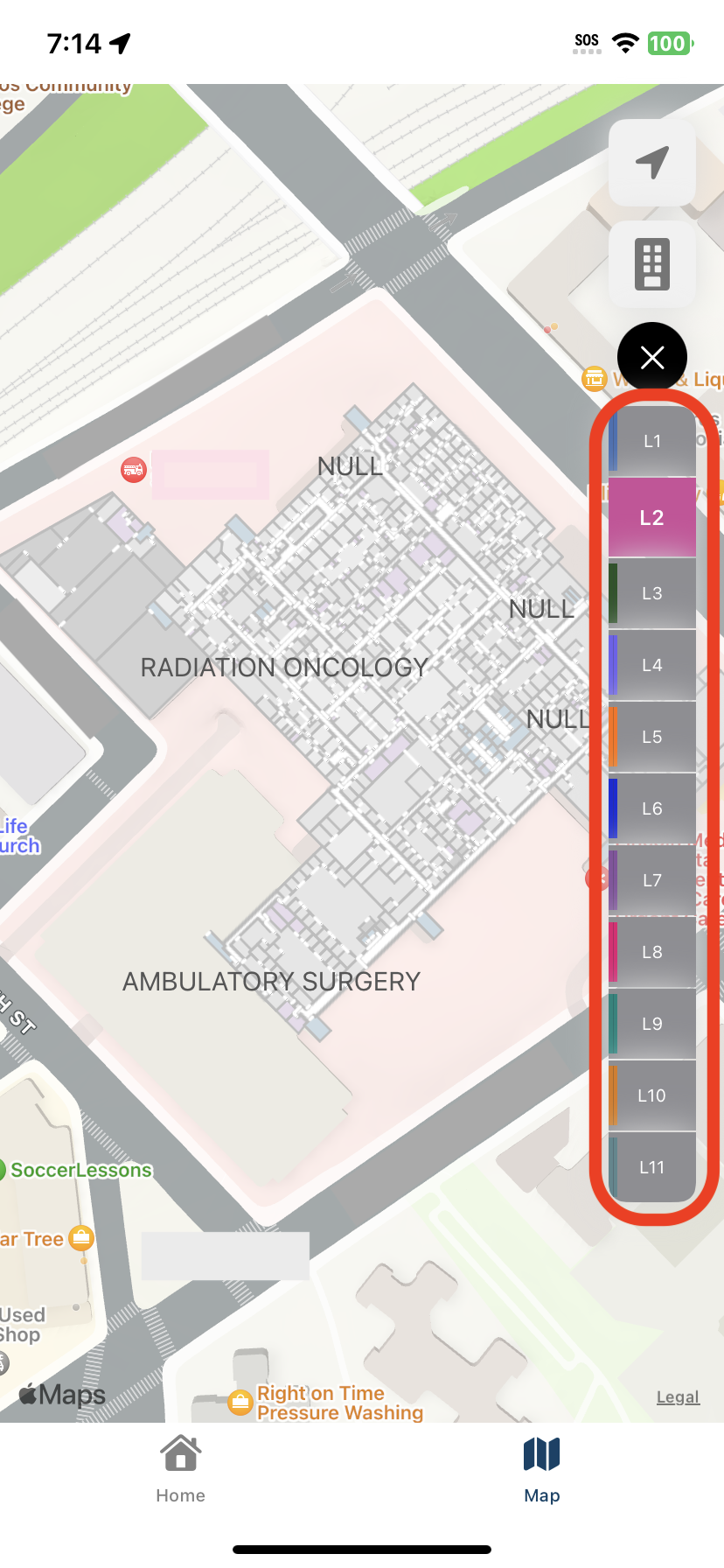
Team members who are using the mobile application can use the map view to see their location within the building.
• The device’s assigned campus will be visible on the map view by default.
• Click on the Floor Switcher and select a floor to view the map for different levels in the building.
• Clicking the “My Location” button in the top right corner of the screen will return the map to center on your location.
Optional: Enable Mobile App Logins
1. If “Enable Logins” was selected when adding team members to teams, a Microsoft login option will appear in the NavvTrack app on mobile devices
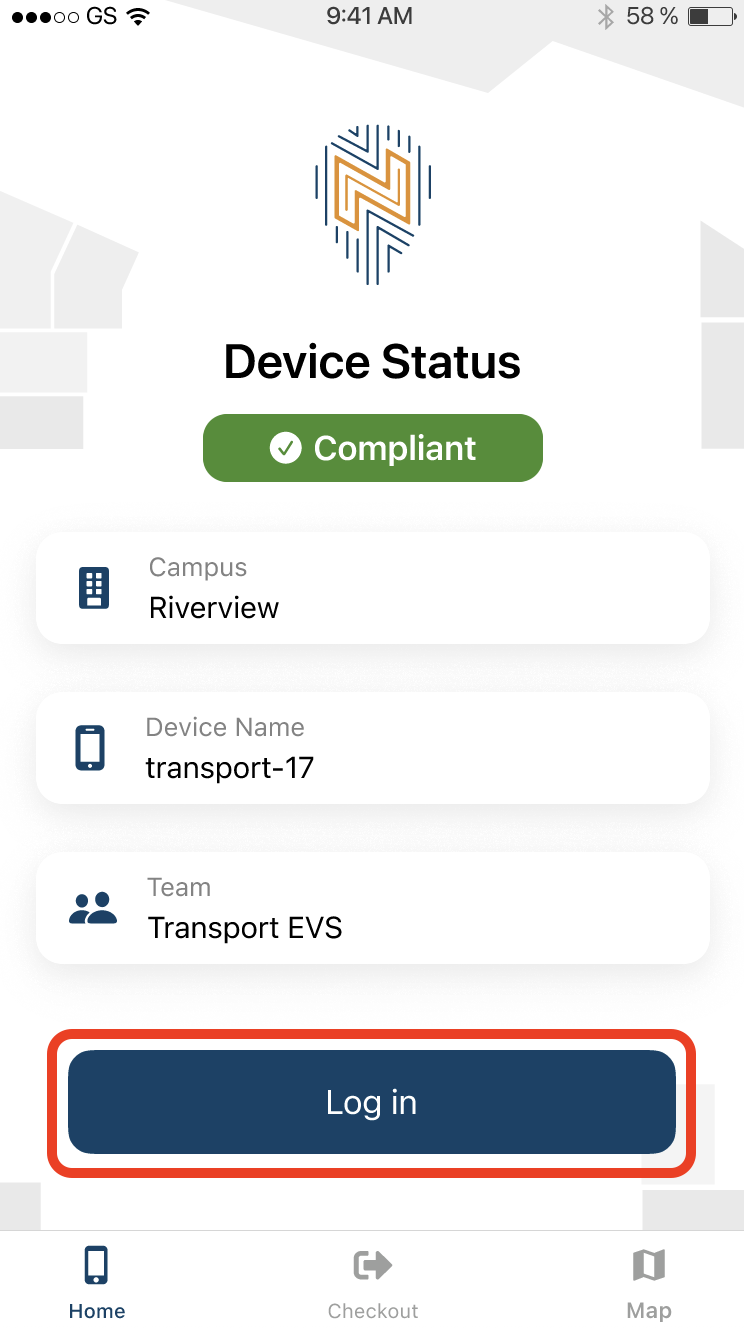
2. When mobile logins are enabled, staff members using the devices can log into NavvTrack App. This enables them to:
a. Automatically display the device as Checked Out
b. Safely share their location on the map with their team
3. To log in, open the NavvTrack App on the provisioned mobile device
4. Select the “Log in with Microsoft” button and enter your hospital email and password.
Device Checkout
Check Out (Without Logins for Mobile App Enabled)
The Check Out feature allows team managers and administrators to keep track of devices that are currently in use by specific team members.
1. Click the Check Out tab in the mobile application
2. Scan the QR code on the web console to associate that device with a team member
Check Out (With Logins Enabled)
For teams with mobile logins enabled, team managers do not need to scan a QR code. When a team member logs into a device, that device will appear on the Check Out dashboard of the web console automatically and disappear when they log out.
Troubleshooting
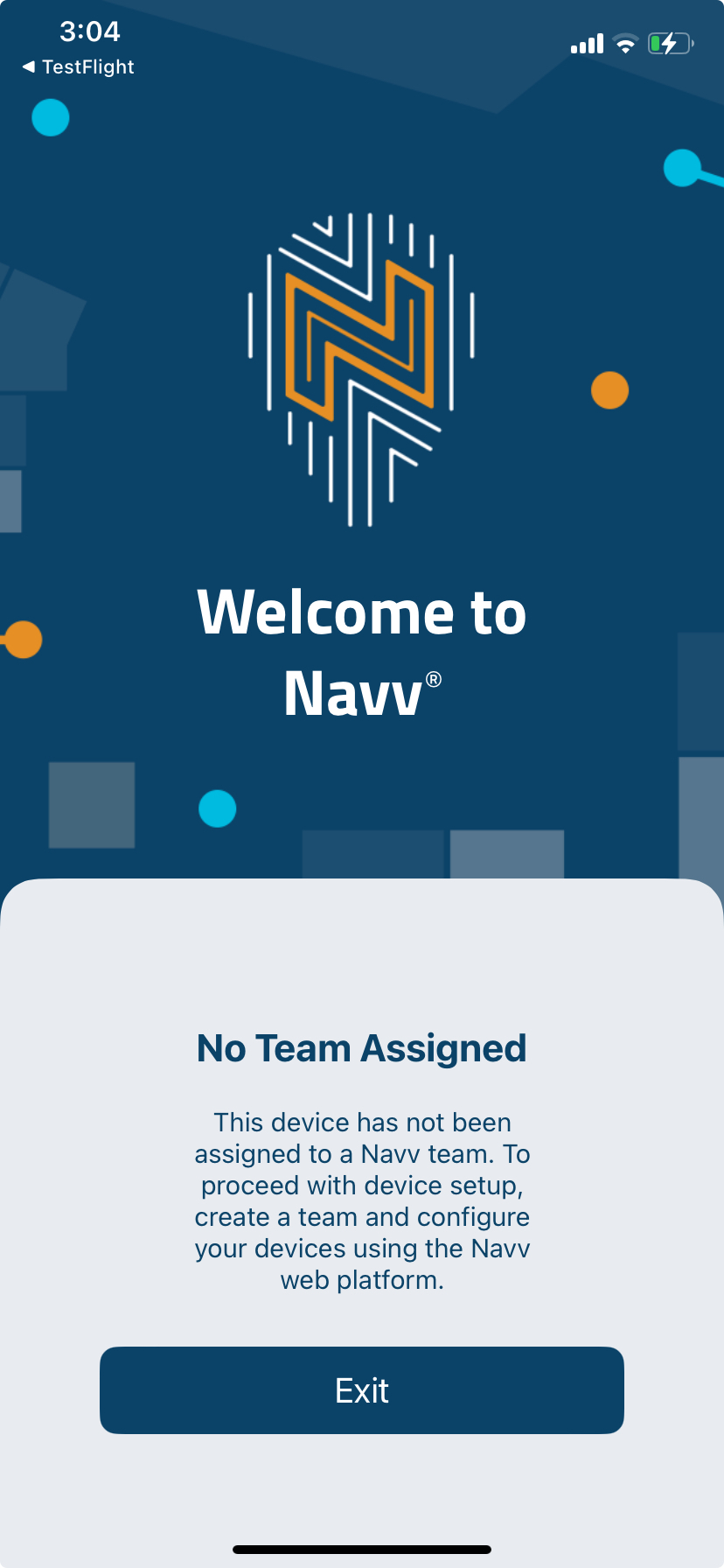
If you open the NavvTrack App and see the below message “No Team Assigned”, please contact your Administrator to create a team and assign the device to the appropriate team.
.jpeg)

