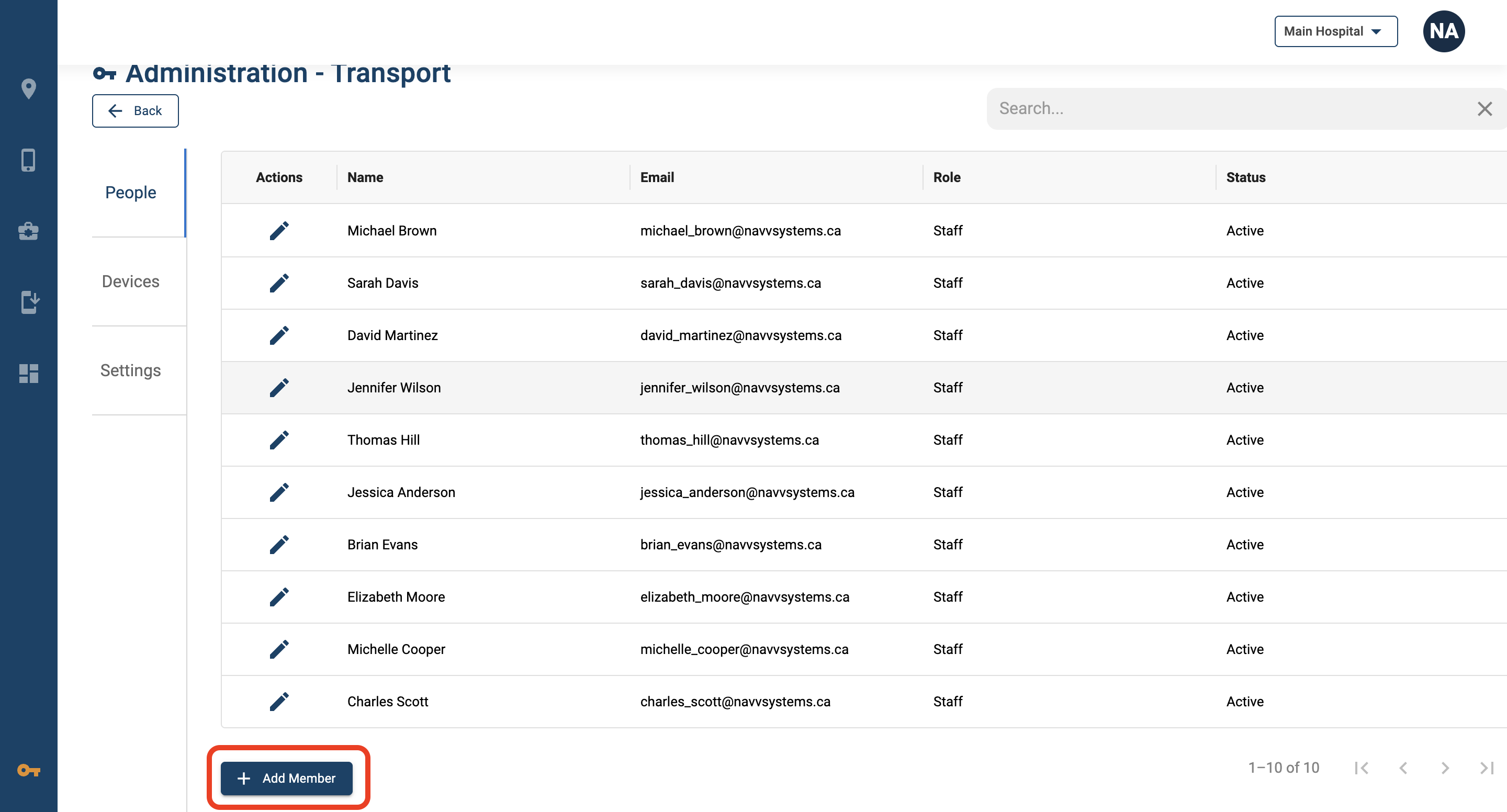
3. Scroll down and click “Add Member”.
4. Input the required information and click “Add.”
Role Information
New users can be created with one of three different levels of access.
Administrators
Administrators oversee all aspects of fleet management in NavvTrack.
• Administrators are able to put devices of all teams in and out of lost mode.
• Administrators are able to create and modify teams.
• Administrators are able to add team members to any team.
• Administrators are able to view all teams, their device locations, and device information.
Team Specific:
• Administrators are able to view devices that are checked in and checked out on their team.
• Administrators will only be able to chat with people on their team.
Manager
Managers oversee the fleet management of their specific team in NavvTrack.
• Managers are able to add and remove team members on their assigned team.
• Managers are able to view team members, team device locations, and device information of their team.
• Managers are able to view devices that are checked in and checked out on their team.
• Managers are able to put devices on their team in and out of lost mode.
• Managers are only able to chat with people on their team.
Staff
Staff are the individual Team Members on each team and will primarily be using the mobile application.
• Staff are able to view the map, Fleet Manager table, and Messaging feature when using the NavvTrack web application.
• When using the mobile application with logins enabled, staff can send and receive Broadcast and Direct Messages.
Administration - Team Settings
This can be used to edit People, Device Groups, and Settings of a particular Team.
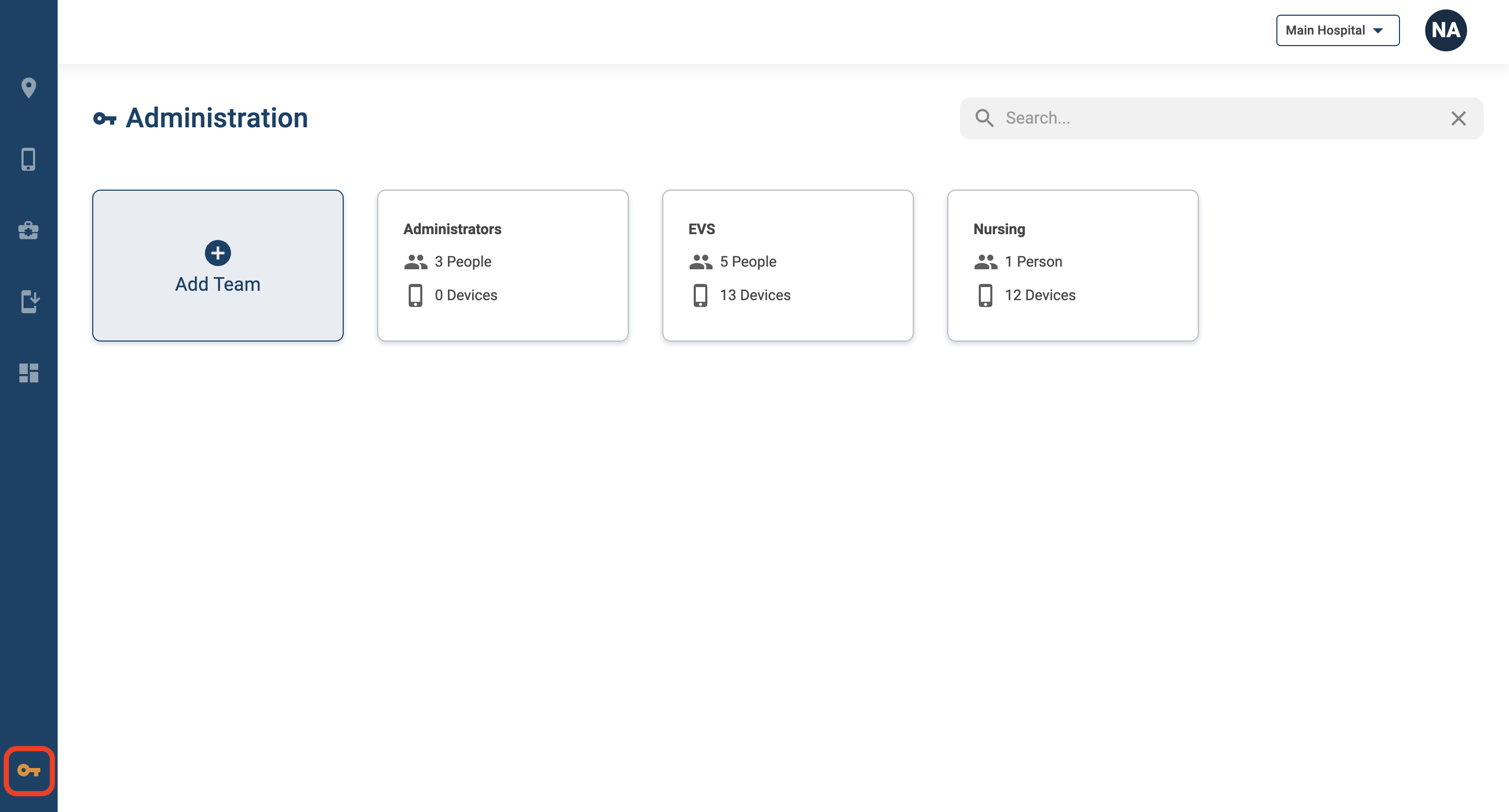
1. Click on the Key in the lower left corner.
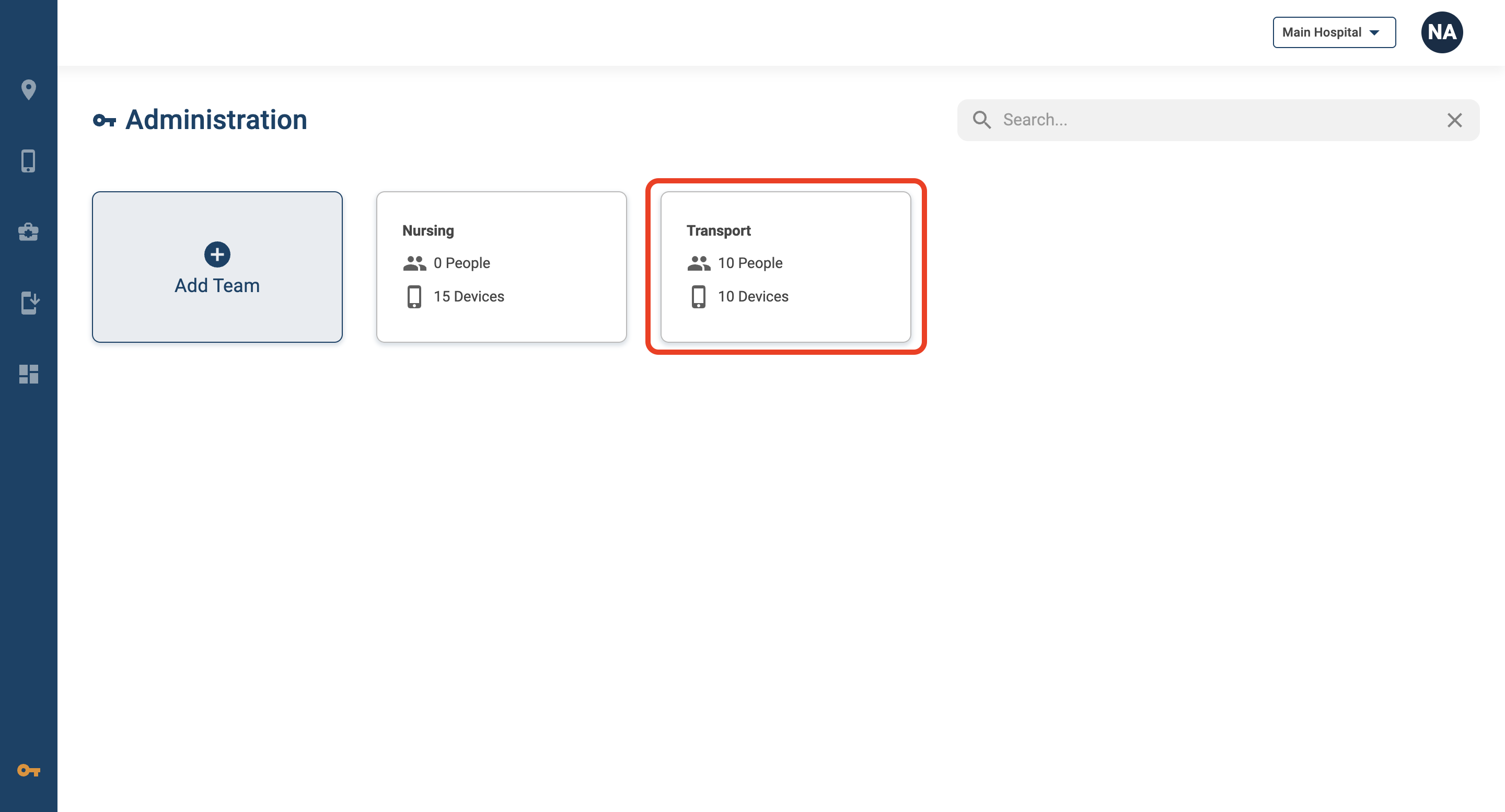
2. Click on a Team.
3. Navigate to Settings.
4. You have the option to select the following Settings:
Enabling Logins
This will provide an option on the NavvTrack mobile application for team members to log into their NavvTrack accounts with Active Directory authentication. Upon logging into the app, team members will have access to the secure messaging feature and their initials will appear on the map. Please note you do not need to log in to the mobile app to track the location of the phone - logins are optional.
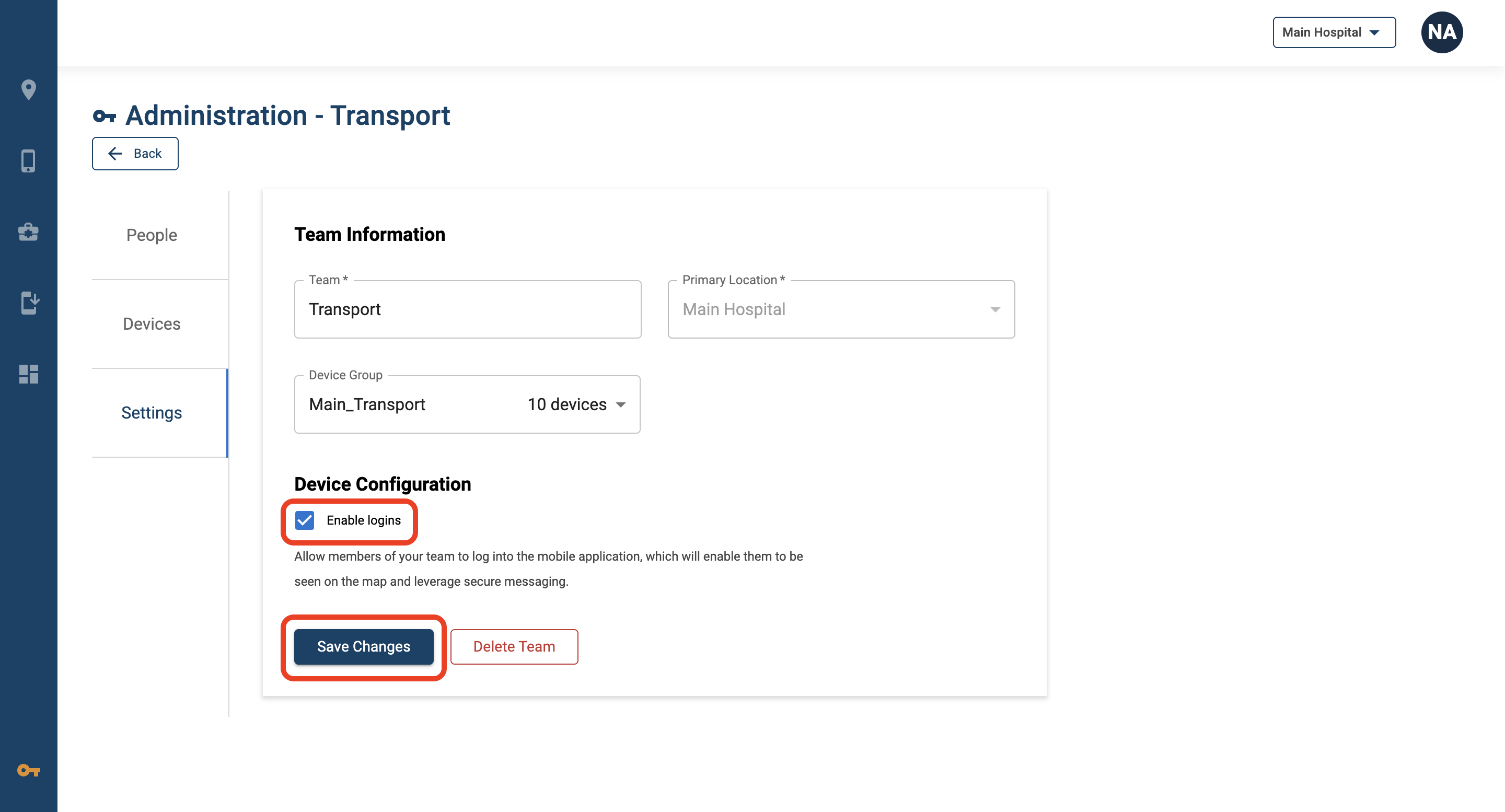
1. Select the checkbox for “Enable Logins”.
2. Click “Save Changes”.
Device Group Configuration
If you do not define a Device Group to a Team in the initial setup above, you can use the below steps to do so.
Linking Device Groups to Teams
1. Click on the Key in the lower left corner.
2. Click on a Team.
3. Click “Settings.”
4. Under “Device Group,” the MDM groups should populate in the drop down menu.
5. Select the respective Device Group for that team.
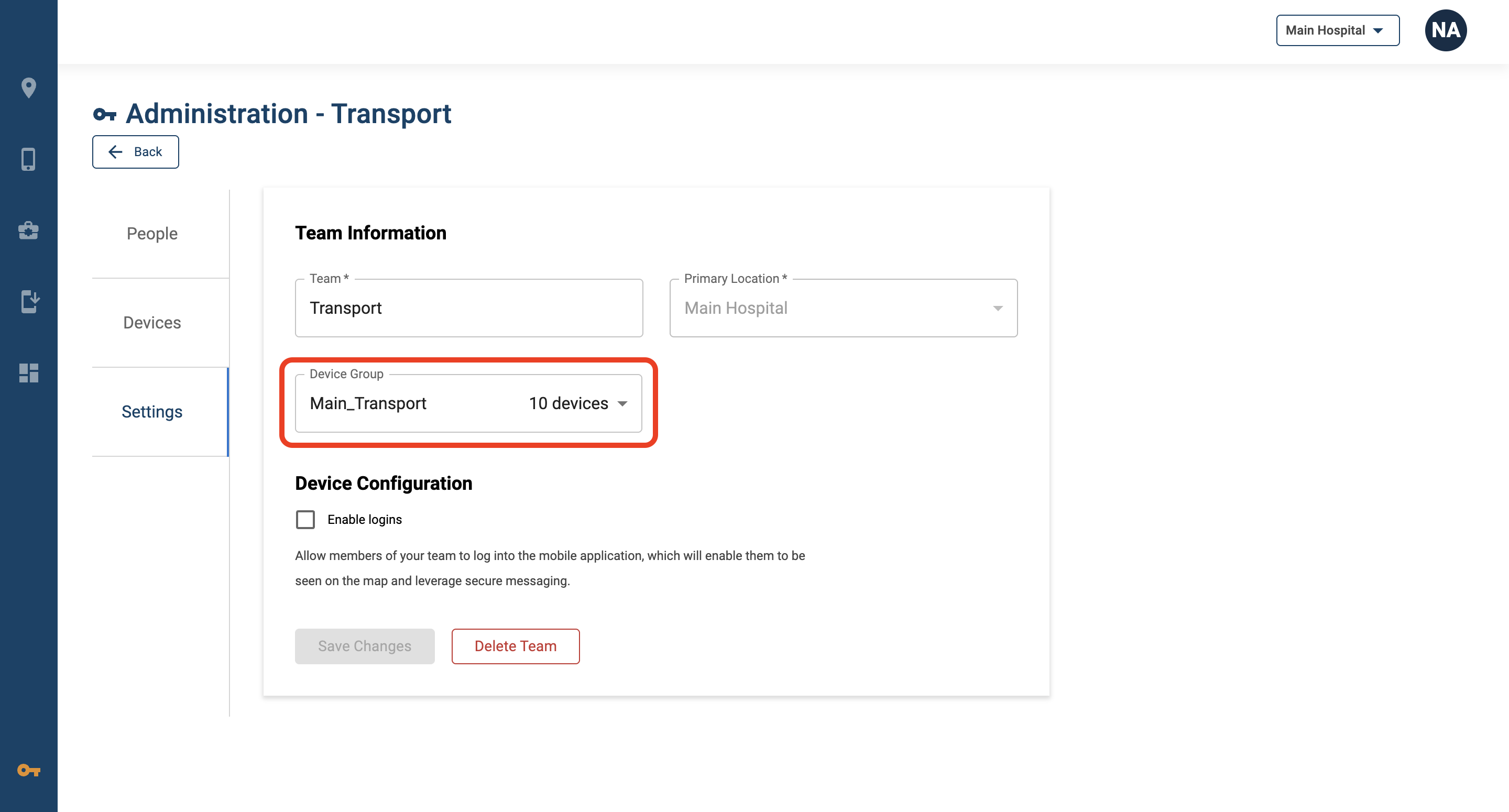

If you do not see an MDM Group that you just created, it may take a few minutes for the group to be visible in NavvTrack. MDM groups that are already associated with another NavvTrack team cannot be selected and will appear greyed out in the list.
Viewing Devices by Team
1. Click on the Key in the lower left corner.
2. Click on a Team.
3. Click on “Devices.”
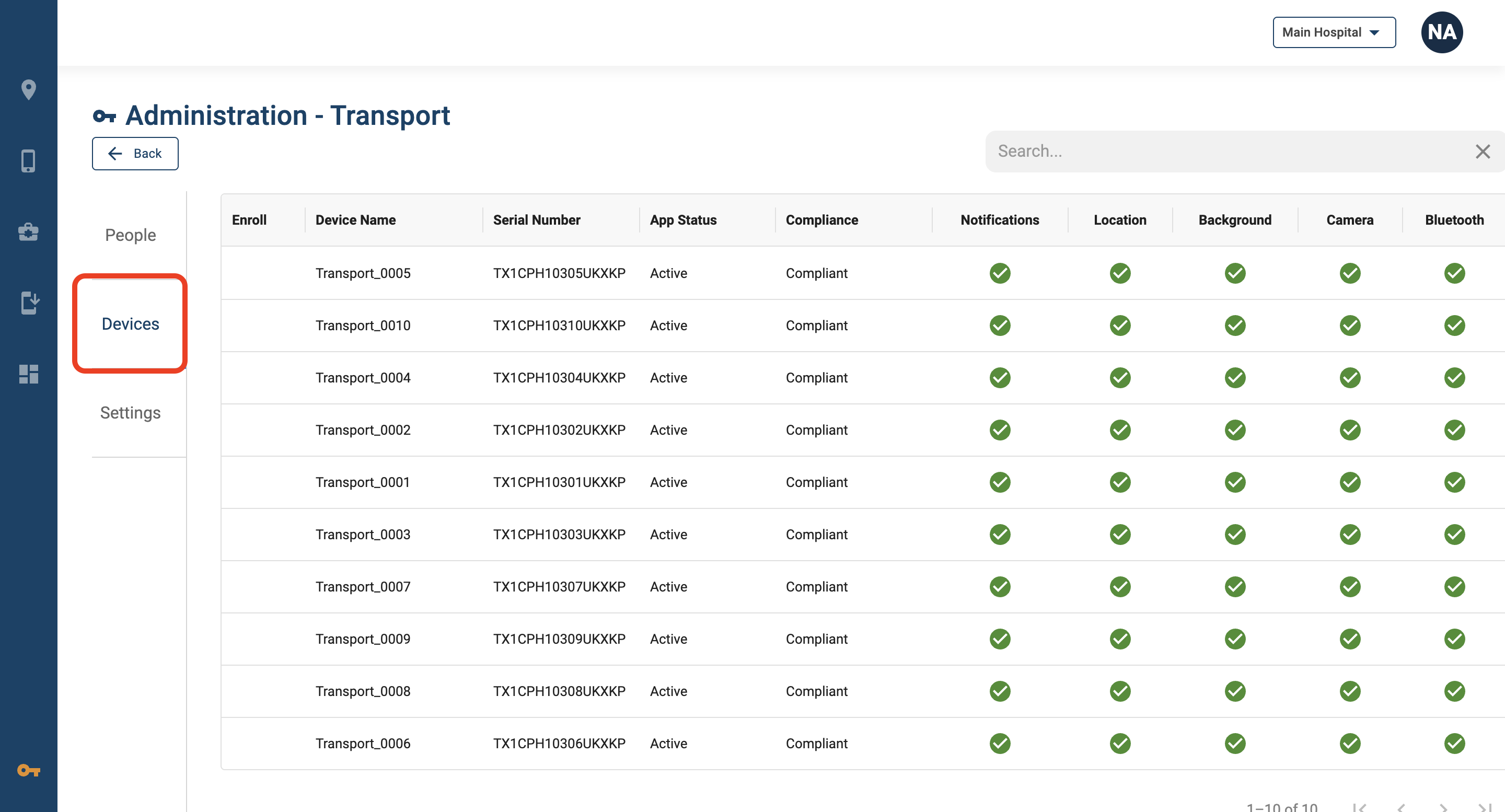
4. All devices should be listed, including non-compliant devices.