User Guide
NavvTrack Fleet Management User Guide - Web & Mobile App
Map View
View the devices and team members throughout your building. You can change which floor you want to look at, building to view, and filter what you see by panning or zooming the map.
1. Open the Map View by selecting the map marker icon in the left navigation.
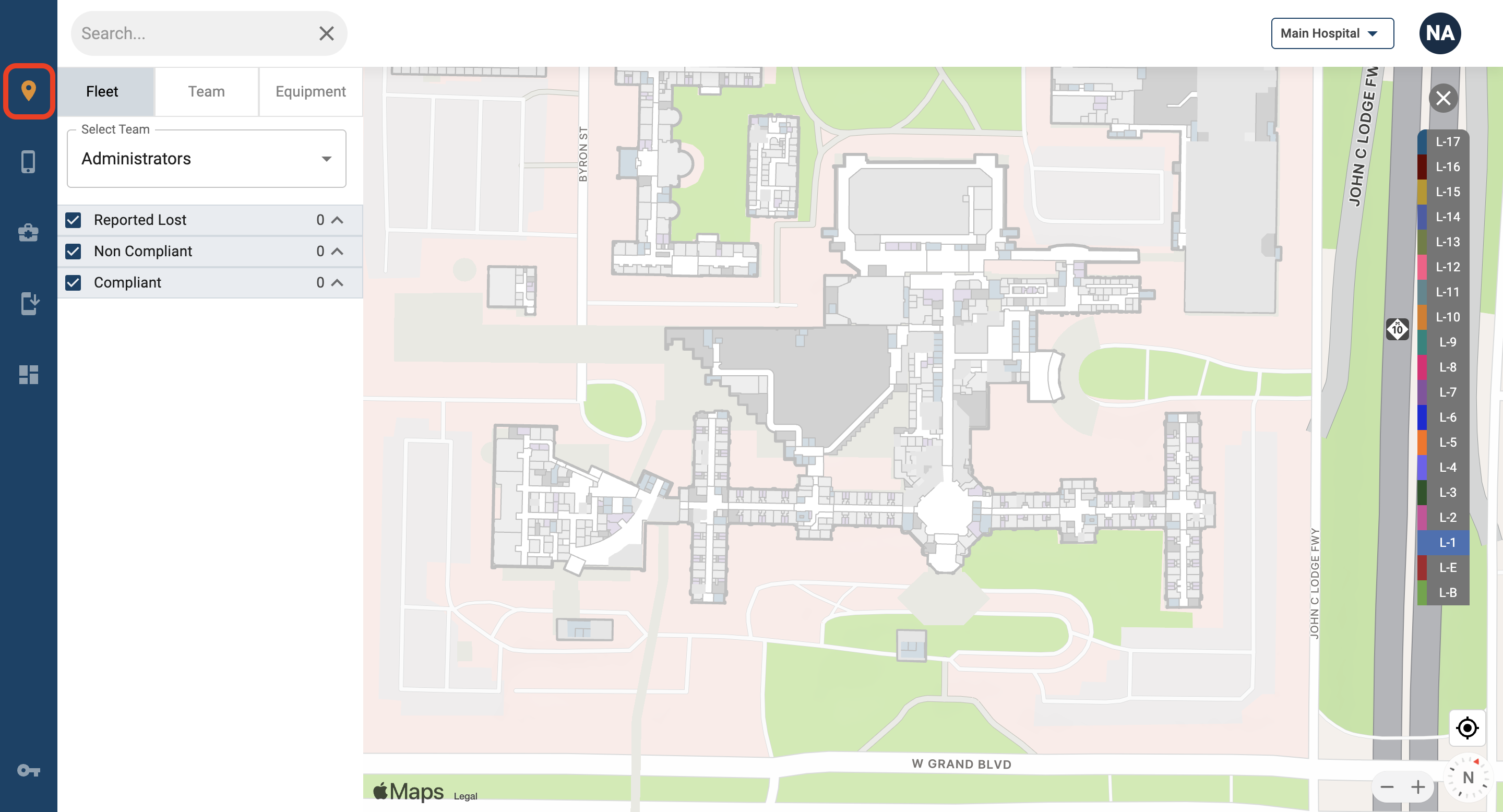
2. Devices and team members that are visible in the current map window will appear in the list on the left side of the screen. In order to view more devices and people on the map and in the list, zoom in and out to adjust your map view.
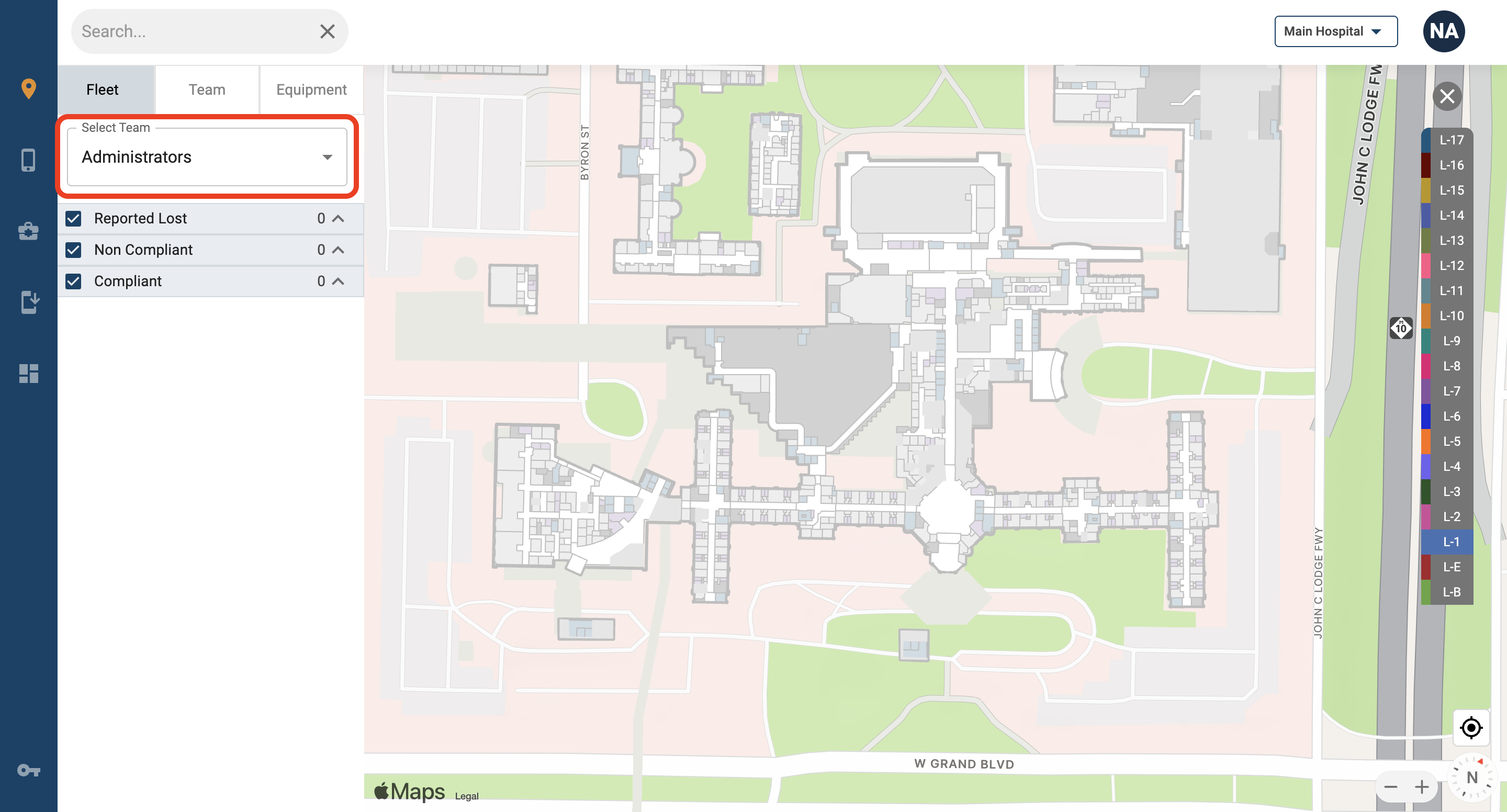
3. Only Administrators will be able to select the team of devices to view on the map view using the dropdown menu titled “Select Team”. Manager and Staff roles can only see the devices on their team.
a. Here, devices will be displayed using the device name if logins are not enabled.
b. Administrators can see devices and team members for any selected team.
c. You can only view one team at a time.
4. Under the “Select Team” section, devices can be filtered by compliance states:
a. Reported LosDevices that have been reported as lost and are currently in lost mode.
b. Non Compliant:Devices that have a status of At-Risk or Security Threat
c. Compliant:Devices that are configured correctly.
5. If mobile logins are enabled, here the initials of each team member will show on the map with the user’s initials upon logging into the mobile app. If the user does not log in to the mobile app, the phone will still appear under the Fleet tab and on the map but without the user’s initials.
6. Search for a device name in the Search Bar above “Select Team”. When Logins are enabled, search for a user by typing their name in the Search Bar.
Changing the Map View
Zoom In/Out:
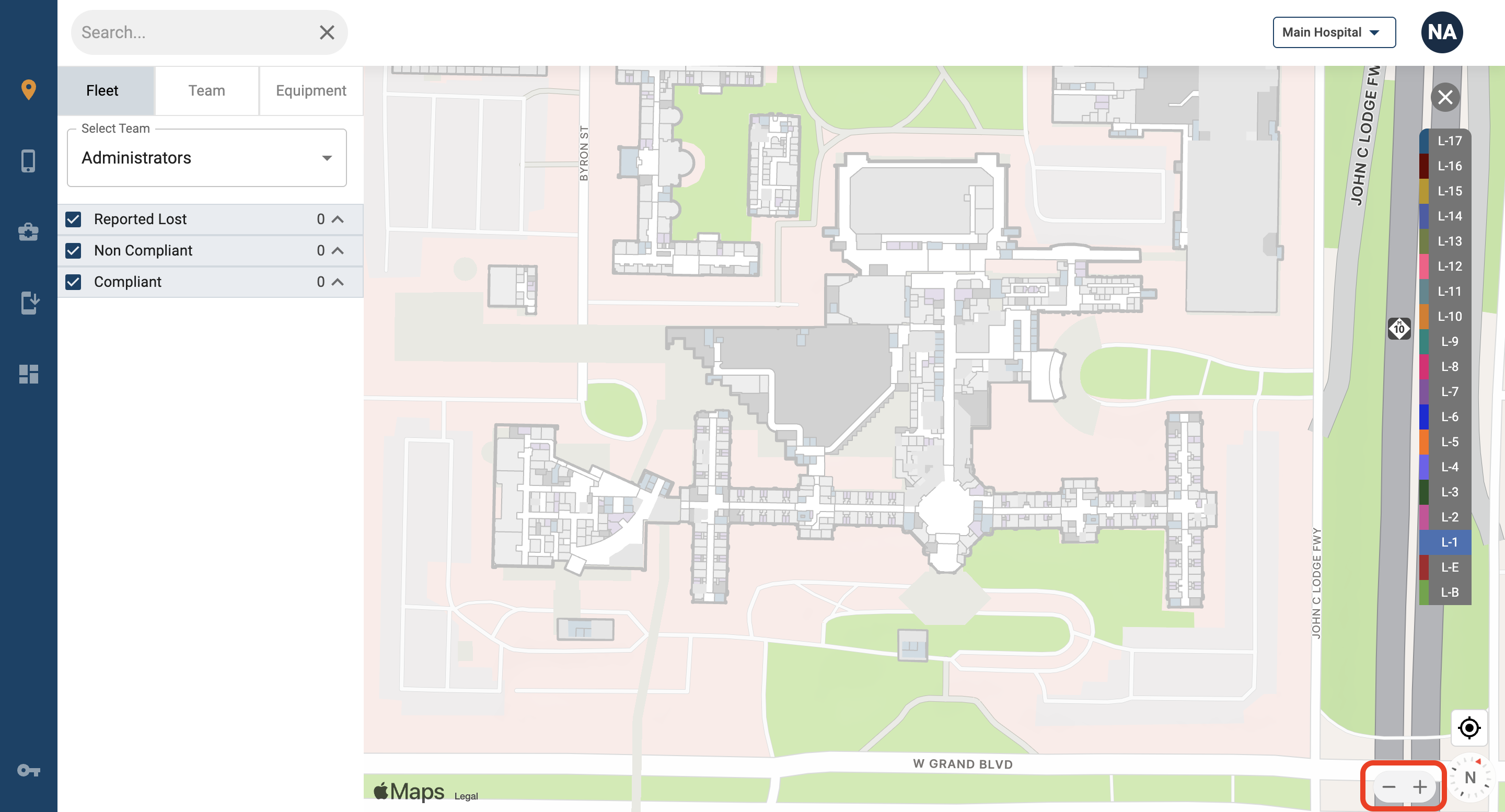
1. Navigate to the bottom right corner of the map.
2. Click the “+” symbol to zoom in.
a. You can also double click on the map to zoom in.
3. Click the “-” symbol to zoom out.
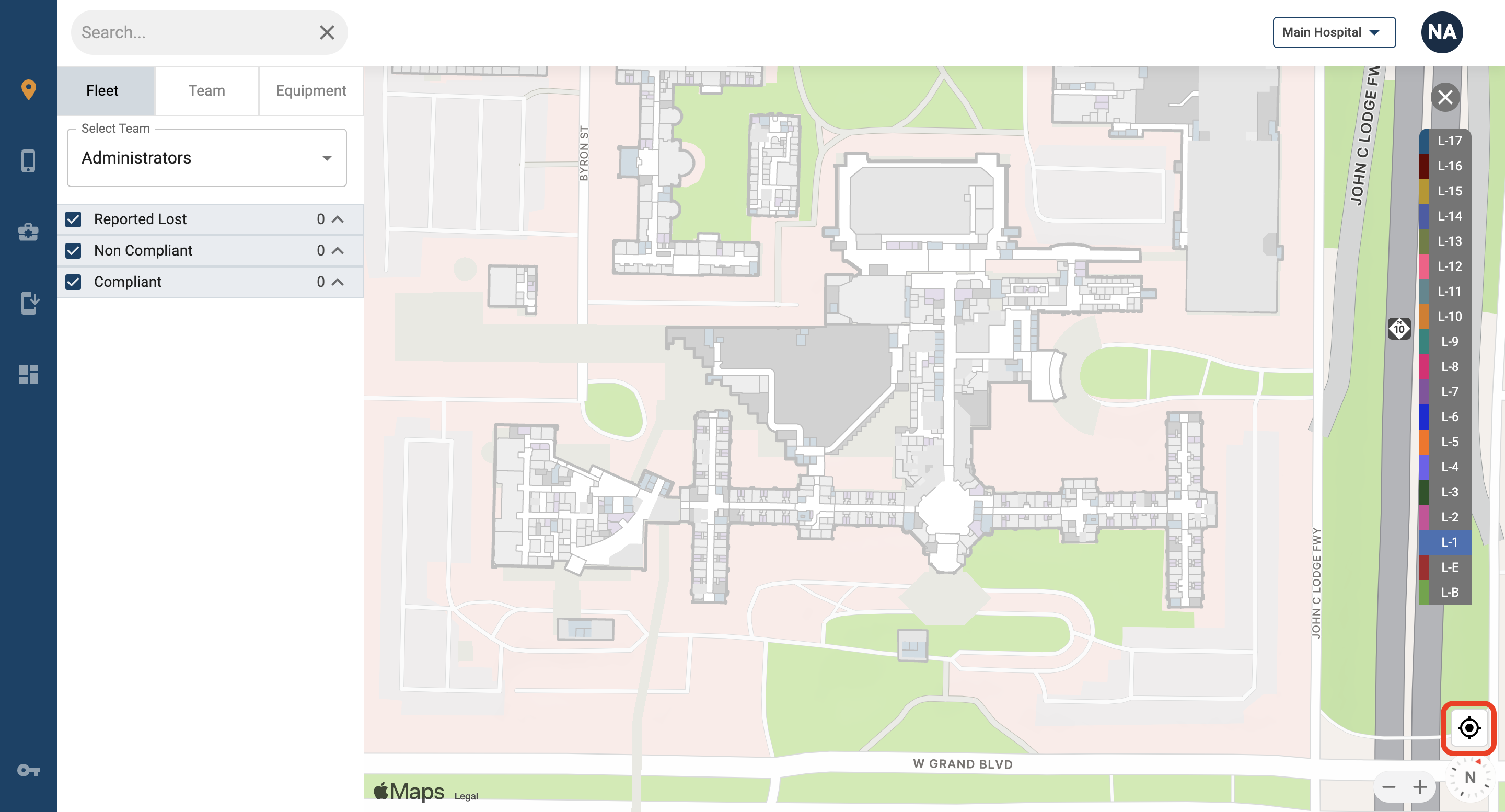
1. Navigate to the bottom right corner of the map.
2. Click the “Center Map” button.
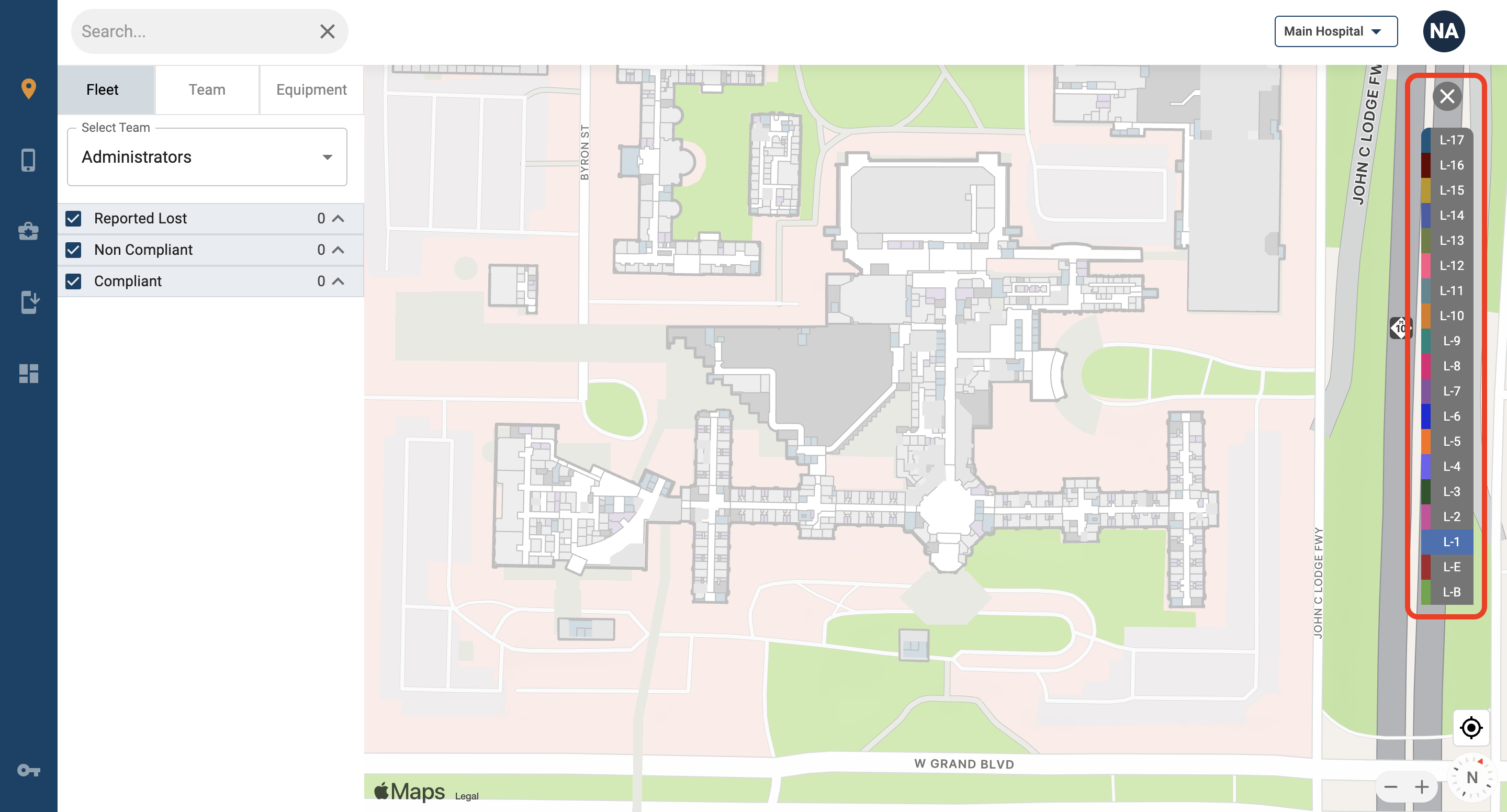
1. Different floors can be selected on the right-hand side of the screen.
2. When selecting a floor ordinal/number, the map view will update to the corresponding chosen floor.
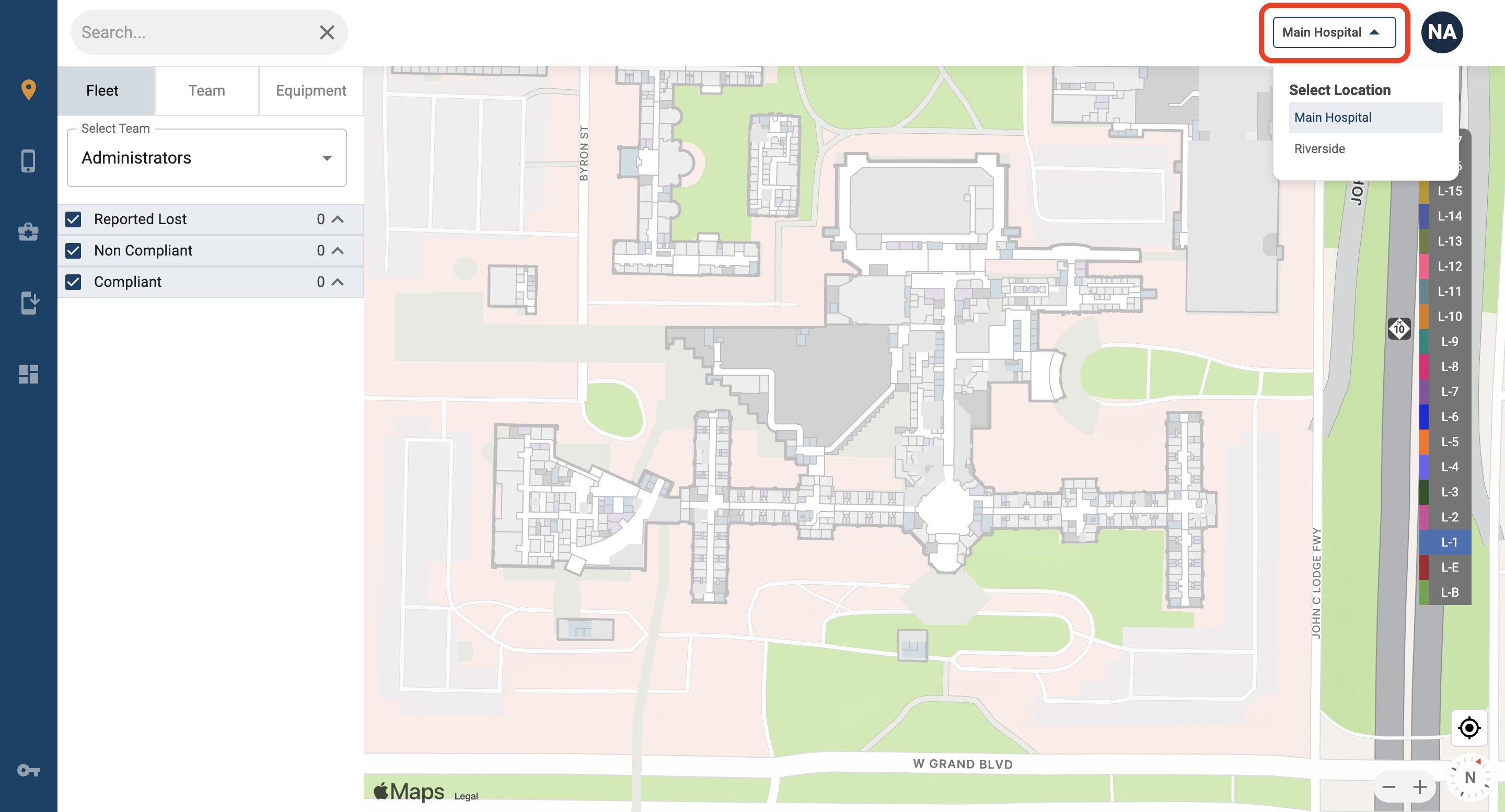
1. Navigate to the top right corner on the screen.
2. Under the user’s name, click the Campus name.
3. From the drop down menu, select the campus you want to view on the map.