User Guide
NavvTrack Fleet Management User Guide - Web & Mobile App
Fleet Manager
1. Open the Fleet Manager by selecting the device icon in the left navigation.
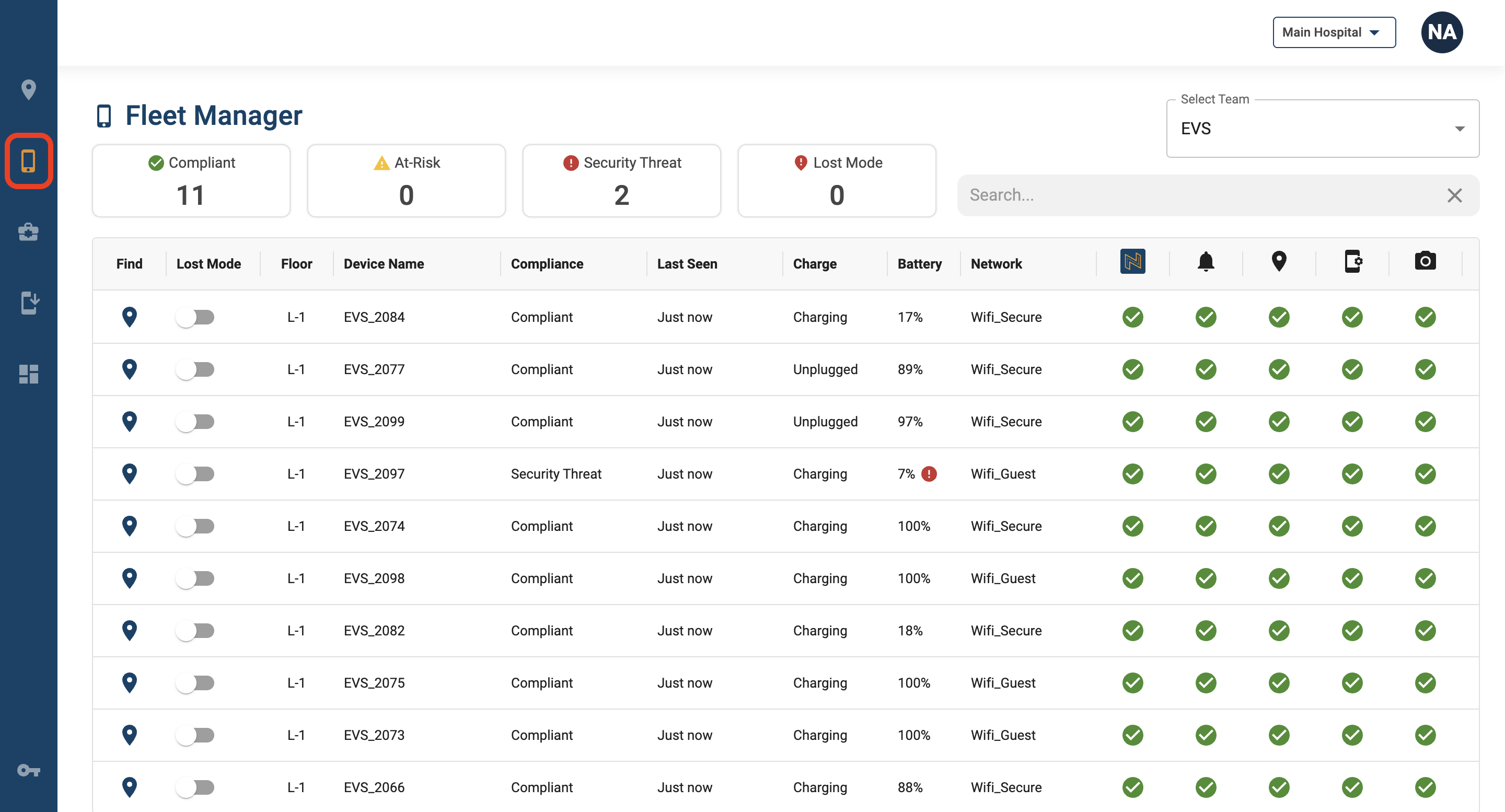
2. Viewing device information
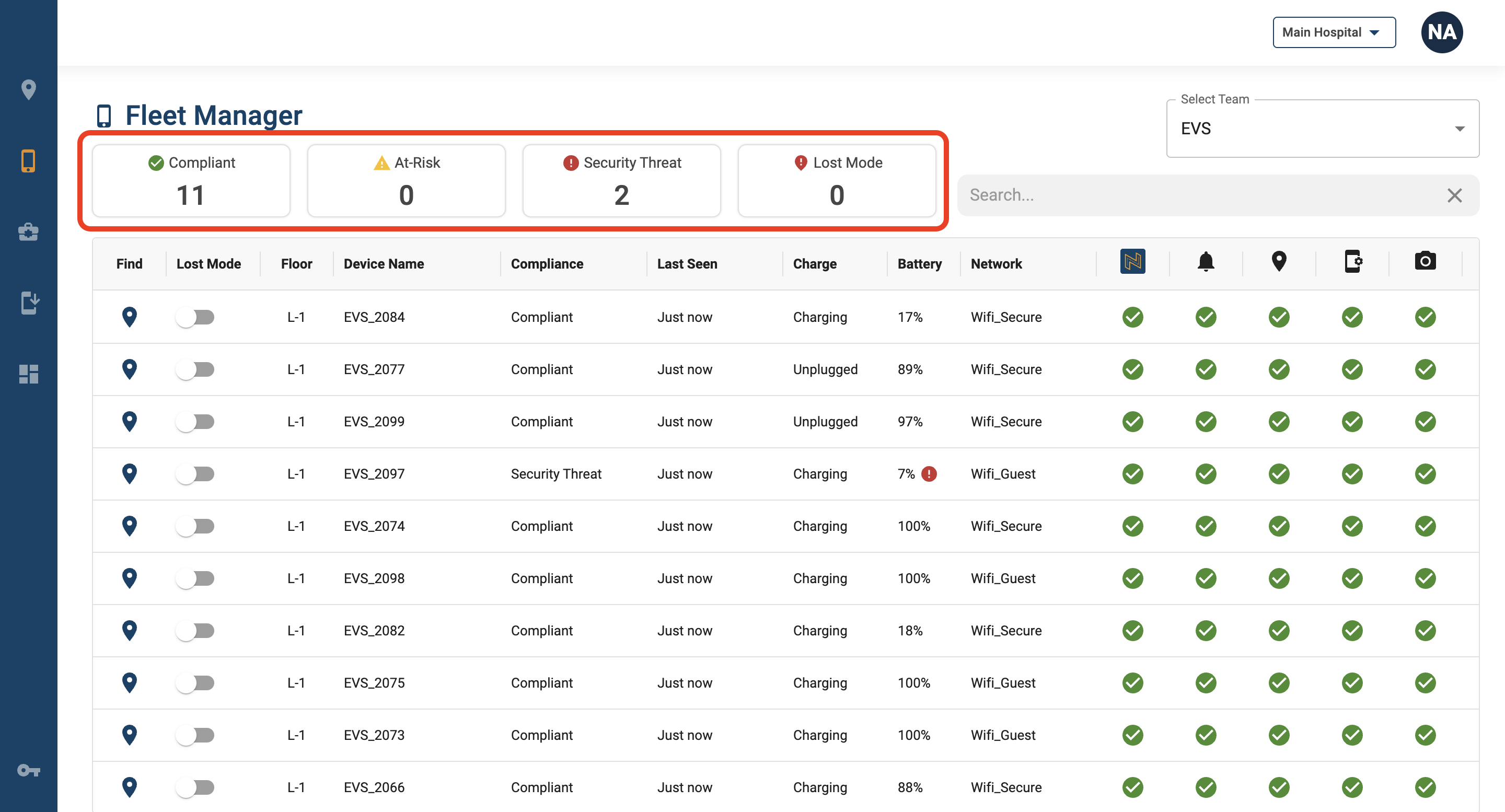
a. At the top of the Fleet Manager page, there are filters that display the number of devices in each compliance state. Clicking on these filters will update the table to show devices in a specific state.
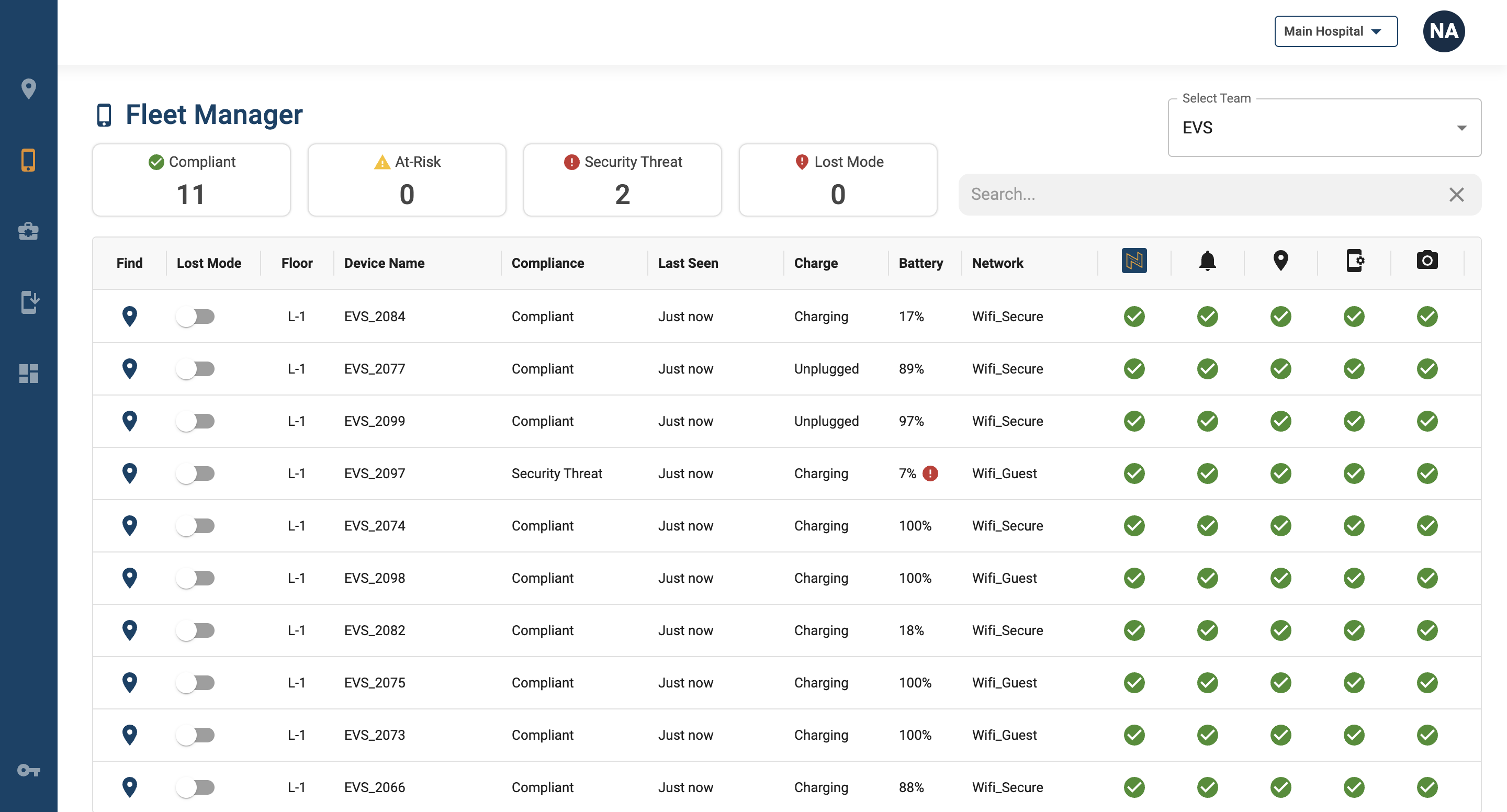
b. The following device information can be found in the table: Device Name, Model, Compliance State, Charge, Battery, and Network
c. The Navv mobile application requires certain permissions to be configured in order to run properly. The statuses of the following Navv mobile application permissions are displayed in the Fleet Manager table.
i. Navv Icon : Indicates whether the mobile app is running properly on the device.
ii. Notifications (Bell Icon) : Indicates whether notifications are enabled
iii. Location (Map Marker Icon) : Indicates whether the location permission is enabled
iv. Background (Device Icon) : Indicates whether location can be sent in background mode
v. Camera (Camera Icon) : Indicates whether the camera is enabled
vi. Bluetooth (Bluetooth Icon) : Indicates whether Bluetooth is enabled
3. Administrators can view a different set of devices in Fleet Manager by choosing a different team from the "Select Team" dropdown.
Compliance States
• The Camera and/or Bluetooth setting is not configured correctly.
• Device has not streamed its location for between 10 minutes and 60 minutes.
• Battery is between 16% and 9%.
• The Notifications, Location, and/or Background settings are not configured correctly.
• Device has not streamed its location for more than 60 minutes.
• Battery is below 9%.

If you hover over a particular device’s compliance state that is either At Risk or Security threat, a pop up will indicate the reason why that device is not in compliance. An icon will also appear next to the cause of the compliance state, which will be either battery, last seen, or incorrect permission settings.
Lost Mode
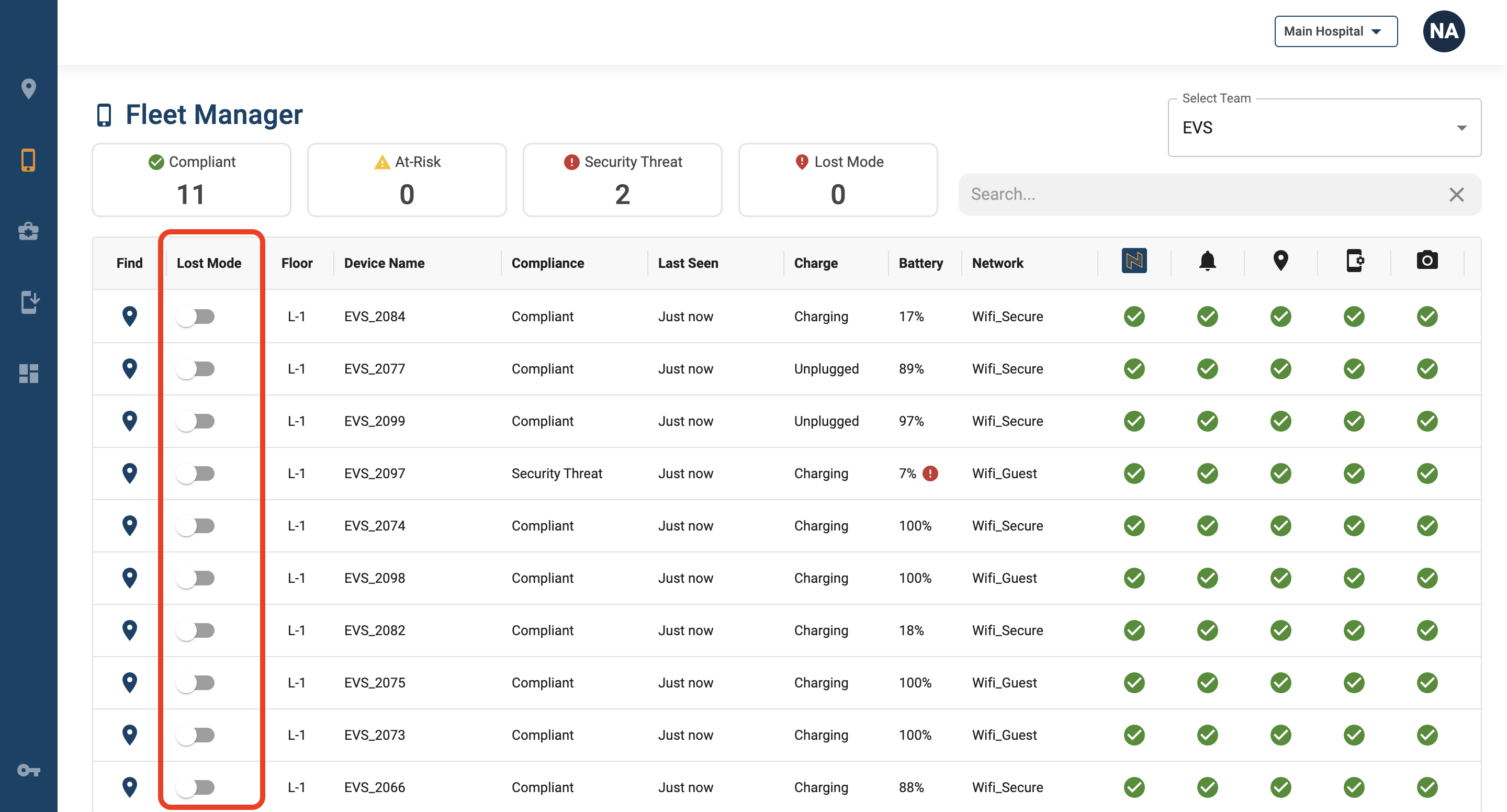
1. To enable lost mode for a specific device, toggle the Lost Mode “On” for that device.
a. On the device itself, it will display a message determined by MDM settings.
b. The last known location of the lost device will be available on the Map View of NavvTrack Web Console.
c. If the device is turned off or disconnected from the network, the Lost Mode request will be pending. As soon as the device is connected to a network it will be placed into lost mode.
2. To disable lost mode, toggle the Lost Mode “Off” if a device has been found.
a. This will unlock the device and return it to a usable state.

